
DISPATCH DATE BADGE
What this app does
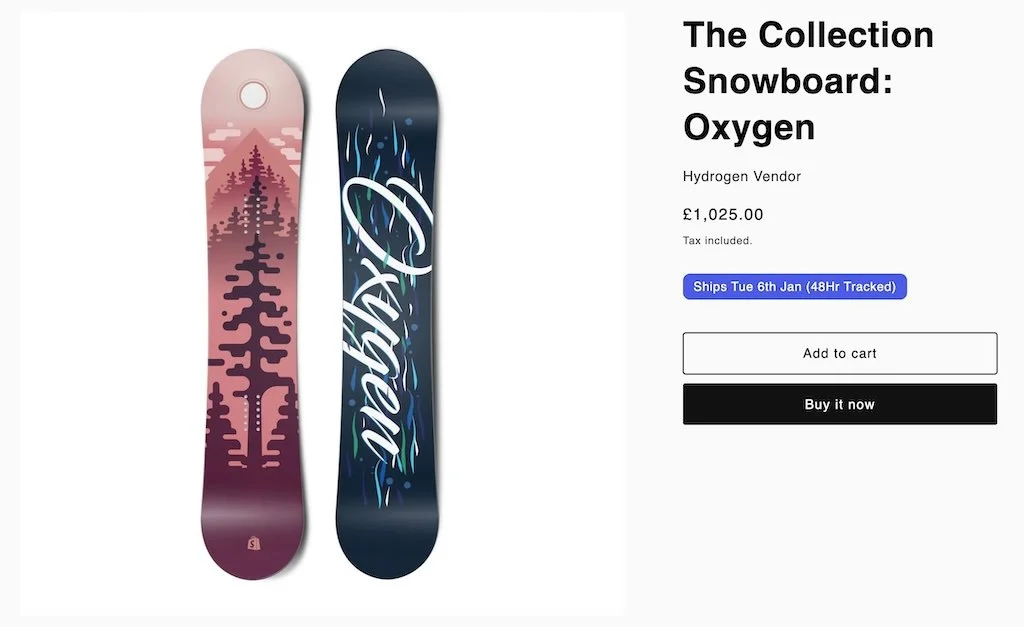
Dispatch Date Badge shows customers when their order will be dispatched directly on your product pages. The badge updates automatically throughout the day based on your cutoff time, working days, and holidays.
When a customer views a product before your cutoff time, they see "Dispatches today". After the cutoff, the badge automatically updates to show "Dispatches tomorrow" or the next available dispatch date.
This helps set clear expectations for customers and can increase conversion rates by showing fast dispatch times.
Quick Start
Install the app from the Shopify App Store
Go to your theme customiser (Online Store → Themes → Customise)
Navigate to a product page template
Add the "Dispatch Badge" app block to your product template
Configure the app settings in the Shopify admin
Adding the badge to your theme
Using the theme customiser
Go to Online Store → Themes
Click Customise on your active theme
Navigate to a product page template using the page selector
Find the section where you want the badge
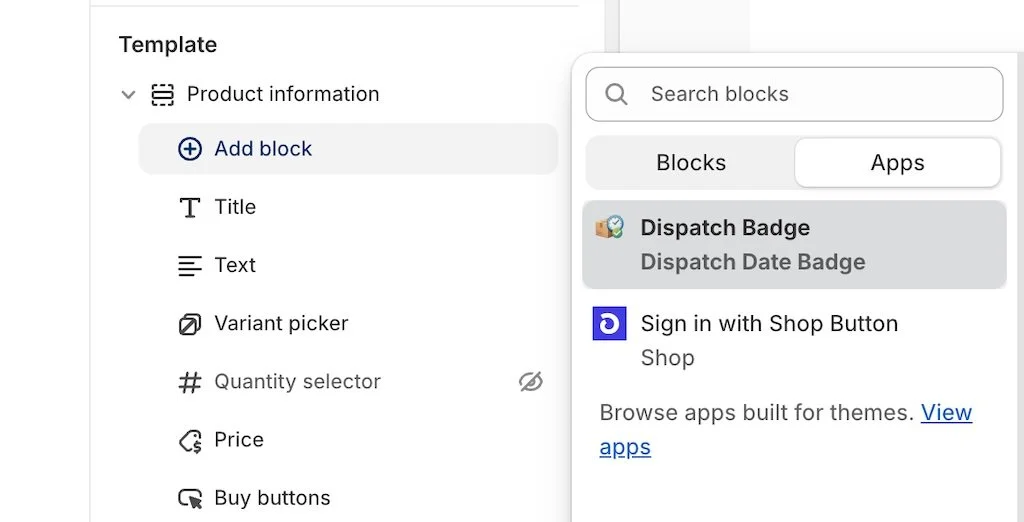
Click Add block and select the Apps tab
Select Dispatch Badge from the list
Save your changes
The badge will now appear on all product pages that use this template.
Configuration
After installation, configure the app through the App settings in Shopify admin.
Basic settings (Free & Pro)
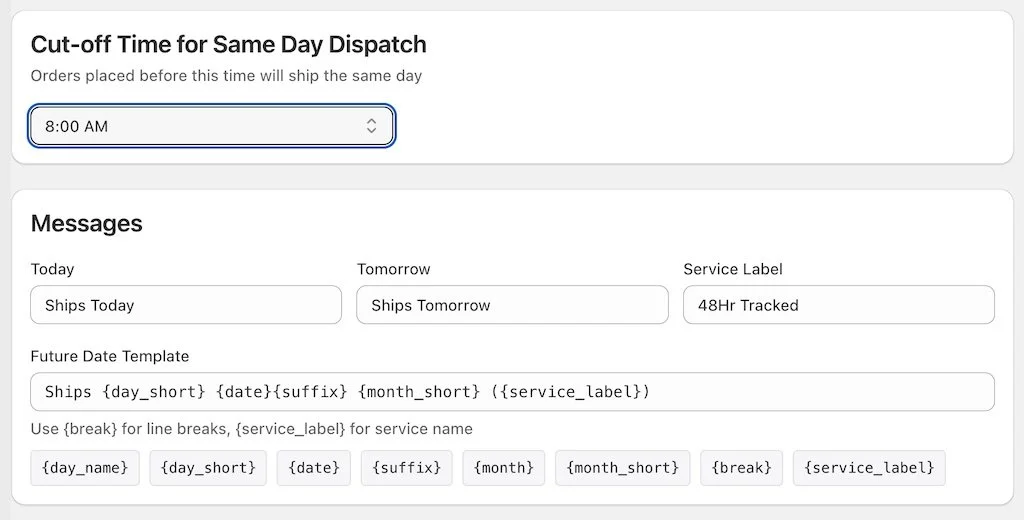
Cutoff time
The time after which orders won't dispatch the same day.
Format: 24-hour time (e.g., 14:00 for 2pm, 16:30 for 4:30pm)
Messages
Dispatches today: Shown when order will ship same day (default: "Dispatches today")
Dispatches tomorrow: Shown when order will ship next working day (default: "Dispatches tomorrow")
Future dispatch template: Shown for dispatch dates 2+ days away (default: "Dispatches {day_name} {date}{suffix} {month}")
Backorder settings
Show on backorder: Whether to show badge for out-of-stock products when ‘continue selling when out-of-stock’ is enabled
Backorder message: What to display for out-of-stock items (default: "Available to pre-order")
Holiday dates
Add dates when you don't dispatch (bank holidays, closure dates).
Enter dates in YYYY-MM-DD format. You can paste directly from a CSV file, enter one per line, or comma-separated with or without spaces.
Example (one per line):
2026-01-01
2026-04-03
2026-04-06
Example (comma-separated):
2026-01-01,2026-04-03,2026-04-06UK Bank Holidays 2026:
2026-01-01,2026-04-03,2026-04-06,2026-05-04,2026-05-25,2026-08-31,2026-12-25,2026-12-28Service label
Your shipping service name (e.g., "Royal Mail 24", "DPD Next Day")
Use the {service_label} placeholder in messages or leave blank to append automatically.
Badge styling
Style mode: Choose between "custom" (your colours) or "theme" (use theme's badge styling)
Background colour: Hex colour code (e.g.,
#8e44ad)Text color: Hex color code (e.g.,
#FFFFFF)Border radius: Rounded corners in pixels (0 = square, 4 = slightly rounded, 20 = very rounded)
How dispatch dates are calculated
The app follows this logic:
Check current time against cutoff
Before cutoff + weekday + not a holiday = "Dispatches today"
Otherwise, proceed to step 2
Find next working day
Start with tomorrow
Skip Saturdays and Sundays
Skip any dates in your holiday list (Pro only)
Continue until a valid working day is found
Display appropriate message
1 day away = "Dispatches tomorrow"
2+ days away = formatted date message
Examples
Scenario 1: Customer visits at 1pm on Tuesday, cutoff is 2pm
Result: "Dispatches today"
Scenario 2: Customer visits at 3pm on Tuesday, cutoff is 2pm
Result: "Dispatches tomorrow" (Wednesday)
Scenario 3: Customer visits at 3pm on Friday, cutoff is 2pm
Result: "Dispatches Monday [date]" (skips weekend)
Scenario 4: Customer visits at 1pm on Friday before a Monday bank holiday
Free plan: "Dispatches Monday [date]" (doesn't know about holiday)
Pro plan: "Dispatches Tuesday [date]" (skips the holiday)
Message customisation (Pro)
Customising the future date template
[Screenshot: Future Date Template field with clickable placeholder buttons below it]
When editing the "Future Date Template" field, you'll see clickable placeholder buttons below the text box. Click any button to insert that placeholder into your message at the cursor position.
Available placeholders
PlaceholderOutputExample{day_name}Full day nameMonday{day_short}Abbreviated dayMon{date}Day of month15{suffix}Ordinal suffixst, nd, rd, th{month}Full month nameJanuary{month_short}Abbreviated monthJan{break}Line break(new line){service_label}Your shipping serviceRoyal Mail 24
Message templates examples
Compact format:
Ships {day_short} {date}{suffix} {month_short}
Output: "Ships Mon 15th Jan"
With service label:
Dispatches {day_name} {date}{suffix}{break}{service_label}
Output: "Dispatches Monday 15th
Royal Mail 24"
Detailed format:
Order today for dispatch on {day_name} {date}{suffix} {month} via {service_label}
Output: "Order today for dispatch on Monday 15th January via Royal Mail 24"